


Before redesigning, rebuilding, or adding new features to a WordPress website, it is tempting to start working on the design immediately.
That can be a costly mistake.
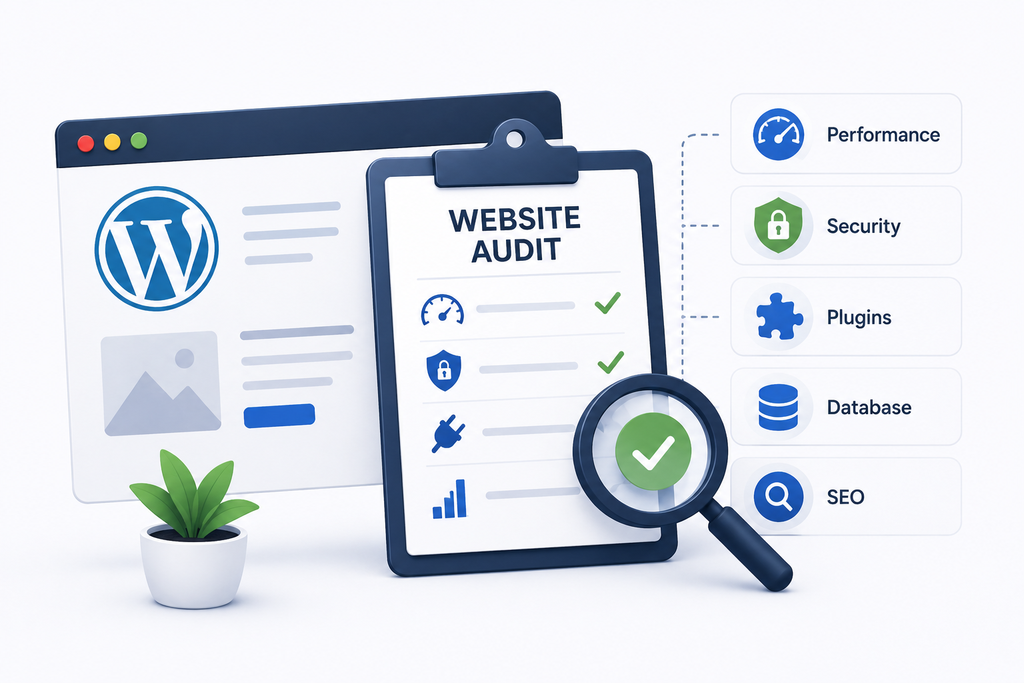
A website audit gives you a clear picture of the site’s current condition before development begins. It helps identify performance issues, outdated plugins, security concerns, SEO problems, and technical limitations that could affect the new project.
For businesses planning Custom WordPress Website Development Services, an audit is especially useful because it helps developers understand what should be kept, improved, replaced, or rebuilt.
Why Audit a WordPress Website First?
A WordPress website can contain years of accumulated content, plugins, custom code, theme modifications, database records, and integrations.
Without an audit, you may not know:
- Which plugins are actually being used
- Whether the theme contains important customizations
- Which pages generate traffic
- Whether the website has performance problems
- If old code is affecting functionality
- Whether important URLs could be lost during a redesign
An audit turns these unknowns into a practical development plan.
1. Check Website Performance
Start by measuring the current website before making changes.
Review:
- Page loading speed
- Server response time
- Large images
- JavaScript and CSS
- Caching
- Core Web Vitals
- Mobile performance
Don’t optimize based on assumptions. First identify the pages and resources creating the biggest problems.
This also gives you a baseline that can be compared with the website after development.
2. Use WordPress Site Health
WordPress already provides a useful starting point through Tools → Site Health.
The Site Health screen can provide information about WordPress, plugins, themes, PHP, the server, database, filesystem permissions, and other configuration areas.
Look for:
- Critical issues
- Recommended improvements
- Outdated software
- PHP problems
- Plugin and theme issues
- HTTPS configuration
- Background update problems
The official WordPress Site Health documentation is a useful reference when reviewing these checks.
3. Audit Installed Plugins
Plugins are often one of the first places to look when reviewing an older WordPress website.
Create a list of active and inactive plugins and determine what each one does.
Ask:
- Is this plugin still needed?
- Is another plugin providing the same feature?
- Is it maintained?
- Does it affect website performance?
- Is the functionality business-critical?
Removing unnecessary plugins can simplify maintenance, but don’t delete anything until you understand what it does.
Some plugins may provide functionality that isn’t immediately visible on the frontend.
4. Review the Current Theme
The active theme can contain more than visual styling.
Check whether it includes:
- Custom templates
- Custom functions
- Theme-specific shortcodes
- WooCommerce modifications
- Custom post types
- Third-party integrations
- Child-theme changes
This information helps determine whether the existing theme can be optimized or whether rebuilding the frontend would be more practical.
5. Inspect Custom Code
Many WordPress websites have custom code added over time.
It may exist in:
functions.php- A custom plugin
- A child theme
- Template files
- JavaScript files
- Custom CSS
- API integrations
Don’t remove old code simply because it looks unnecessary.
First identify where it is being used and whether another part of the website depends on it.
A professional WordPress Developer can trace these dependencies before making major changes.
6. Review Website Security
Security should be part of the initial audit rather than something checked after development.
Review:
- Administrator accounts
- User permissions
- Inactive users
- Outdated plugins
- Outdated themes
- SSL/HTTPS
- Backup arrangements
- Suspicious files or changes
WordPress Site Health also highlights certain security and performance-related configuration problems that may require attention.
7. Check the Database
A WordPress database can grow considerably over time.
Depending on the website, it may contain:
- Post revisions
- Transients
- Plugin data
- WooCommerce records
- User information
- Comments
- Custom tables
Before cleaning anything, understand what the data is used for.
A large database isn’t automatically a problem. The important question is whether the data structure and queries support the website efficiently.
8. Review SEO Before Changing URLs
A redesign can unintentionally affect search visibility.
Before changing the website structure, record important:
- URLs
- Page titles
- Meta descriptions
- Canonical URLs
- Internal links
- Redirects
- XML sitemap entries
- Indexed pages
If URLs need to change, create a mapping between old and new URLs and plan appropriate redirects.
Google recommends planning redirects and submitting the new sitemap when moving URLs so search engines can discover and process the new addresses.
You can also use Google Search Console to monitor search performance and indexing after major website changes.
9. Identify Important Business Integrations
A WordPress website may connect to many external systems.
Check for integrations with:
- Payment gateways
- CRM platforms
- Email marketing services
- Analytics tools
- Shipping systems
- Accounting software
- Booking platforms
- External APIs
Document how each integration works before rebuilding the website.
Losing one important API connection during a redesign can disrupt an entire business process.
10. Check Mobile Experience
Don’t audit only the desktop version.
Test important pages on mobile devices, including:
- Homepage
- Product pages
- Service pages
- Forms
- Login
- Checkout
- Navigation
Look for difficult-to-use menus, oversized elements, slow-loading resources, and forms that are uncomfortable to complete on smaller screens.
11. Review Content and Website Structure
An audit is also a good opportunity to identify outdated content.
Check for:
- Duplicate pages
- Outdated information
- Broken links
- Thin pages
- Old landing pages
- Unused media
- Missing important pages
Don’t automatically remove old content. First determine whether it receives traffic, supports other pages, or has business value.
12. Understand the Business Before Development
Technical auditing is only part of the process.
You should also understand what the business wants the new website to achieve.
Ask:
- Who are the target customers?
- What actions should visitors take?
- Which features generate revenue?
- What processes should be automated?
- What problems does the current website create?
- What needs to change as the business grows?
This information helps transform an audit into a development strategy.
When Custom WordPress Development Makes Sense
Sometimes an audit shows that the existing website needs more than a few small fixes.
You may benefit from Custom WordPress Website Development Services when the website requires:
- Unique business functionality
- Custom dashboards
- Advanced integrations
- Membership systems
- Custom WooCommerce features
- Performance improvements
- Bespoke workflows
- A complete redesign with new architecture
Instead of forcing the business to work around the limitations of an existing setup, custom development can be planned around actual requirements.
What a WordPress Developer Should Do After the Audit
Once the audit is complete, the findings should be converted into priorities.
A useful approach is to divide issues into three categories:
Critical
Problems that affect security, availability, or essential functionality.
Important
Issues affecting performance, user experience, SEO, or maintainability.
Optional
Improvements that can be introduced later without affecting the core project.
This prevents the development project from becoming unnecessarily complicated.
Final Thoughts
Auditing a WordPress website before starting development is not about finding problems for the sake of finding problems.
It’s about understanding what you already have before deciding what to build next.
A proper audit can reveal hidden dependencies, outdated technology, performance bottlenecks, SEO risks, and unnecessary functionality. It also gives your development team a clearer starting point.
If you’re planning a redesign or rebuilding an existing WordPress website, Custom WordPress Website Development Services can help turn the audit findings into a cleaner and more scalable solution.
And when the technical structure is complex, an experienced WordPress Developer can help determine what should be preserved, optimized, replaced, or rebuilt.
Audit first. Plan carefully. Then start development with confidence.
Quick Audit Checklist
- Check website performance
- Review WordPress Site Health
- Audit plugins and themes
- Inspect custom code
- Review security
- Check database health
- Record important URLs
- Review SEO structure
- Test mobile experience
- Document third-party integrations
- Understand business requirements
- Prioritize issues before development begins

Hi and welcome! I’ve spent more than 7 years helping WordPress users with easy-to-follow guides, tutorials, and practical tips all completely free.Need expert developer help? I’m just a message away.